Avoiding duplicate “dual state” Windows devices in Entra
As a Microsoft 365 tenant administrator there is not much worse / annoying / frustrating than seeing two devices in Entra for the same device and same person. You know for sure that the end user experience is probably poor, and the application of conditional access polices, and device compliance policies will be out of whack, most likely leading to an inability for the end-user to access Microsoft 365 resources until it is resolved.
Here is a classic example:

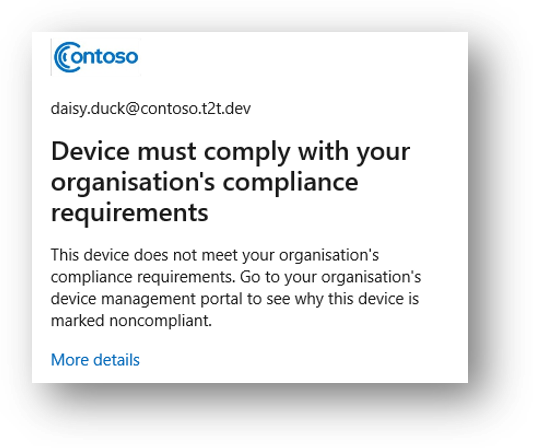
This Windows device is represented twice. Once as Entra registered, and once as Entra joined (or Hybrid joined in other case), and the kicker here is that the “wrong” device is registered in Microsoft Intune. You can see that the last activity is against the Entra registered device.
Dual state devices used to be a very common issue – much to the frustration of Microsoft 365 tenant admins and end users. Microsoft were aware of this and fixed the issue so that dual state devices would merge after a short period of time..
Handling devices with Microsoft Entra registered state
If your Windows 10 or newer domain joined devices are Microsoft Entra registered to your tenant, it might lead to a dual state of Microsoft Entra hybrid joined and Microsoft Entra registered device. We recommend upgrading to Windows 10 1803 (with KB4489894 applied) or newer to automatically address this scenario.
That’s a great article, and even better if it worked like that every time – it does work most of the time though. But you know from bitter experience sometimes it just doesn’t. Then as an Admin you need to remove the registered device from Entra and do a whole little dance on the affected device. Where we see this really fall down is when the Entra registered device gets itself Intune enrolled.
And that my fellow admins, as we all know, is an even worse situation to unpick on the device. Because now you need to run dsregcmd /leave and clean up the Enrollments keys from the registry on the device and run a couple of reboots. Then you must be patient waiting for it all to join up again. For a Hybrid joined device in this state you might even need to remove it from Entra connect scope, sync Entra connect and add it back again.
Help is at hand. Microsoft recently added this setting to tenants.
Disable MDM enrollment when adding work or school account on Windows
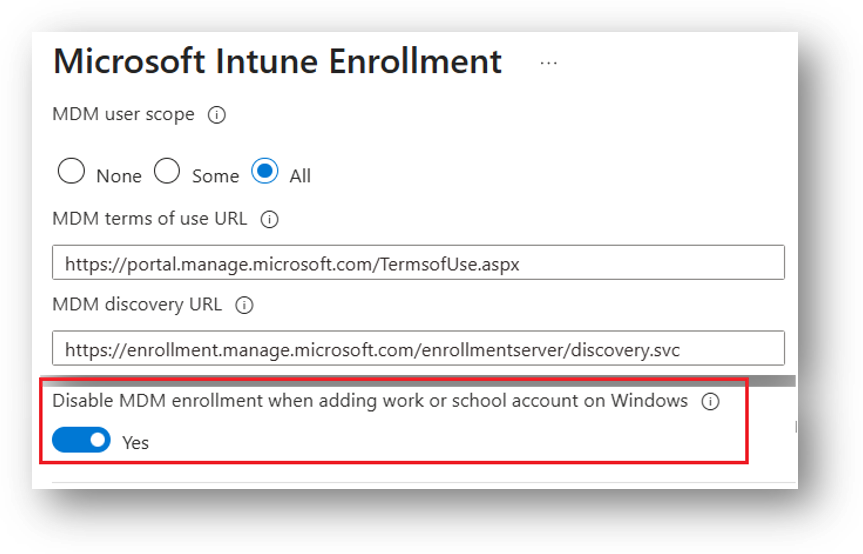
This feature is in public preview. This setting controls if users who are in scope for MDM auto-enrollment, will be prompted to MDM enroll their device when adding their work or school account on Windows. This applies only to Entra Registering/Workplace Joining the Windows devices. For more information, go to https://learn.microsoft.com/intune/intune-service/enrollment/windows-enroll
This setting only blocks the MDM enrollment option from users during the work or school account registration flow. Users can still MDM enroll their device through Windows Settings if they are in scope for MDM automatic enrollment, and through prompts they receive when they try to access a resource that requires MDM enrollment. (Author’s note: this is still a frustration for me, as this can still scupper the process)
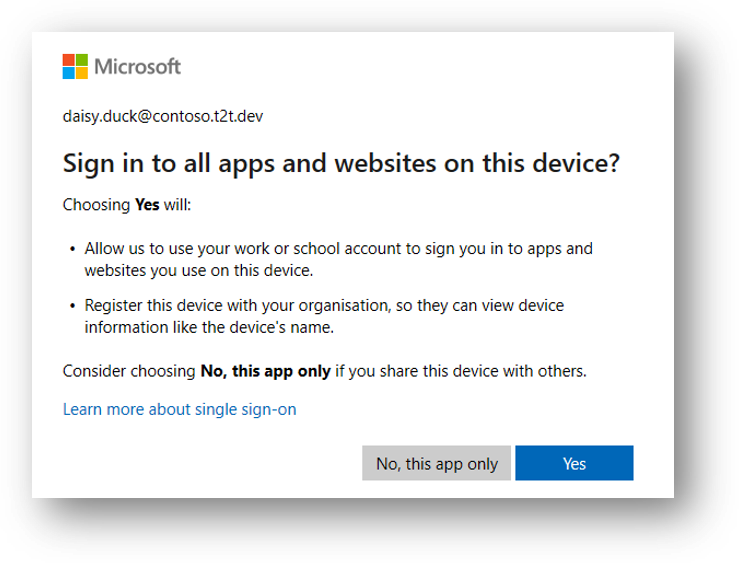
Essentially though, this will stop the device enrolling to MDM when they initially access Microsoft 365 Workloads like signing into Edge profiles, logging in to Teams / Office / Outlook for the first time. Although Microsoft has improved this screen over time and multiple attempts, it is still confusing for the average user. It can, annoyingly, also have the enrollment option here too.
This new setting is actually quite crucial, because if the device has not yet completed the Hybrid join & MDM enroll sequence – then stopping MDM enrollment for a registered device at this point, is an absolute winner to avoid one of the reasons for persistent dual state devices.
The Microsoft Entra Hybrid join sequence
In a perfect world Entra Hybrid join and Intune enrollment would happen quicker, but we all know that it doesn’t. There is always a lag between the device becoming Microsoft Entra Hybrid joined, the user logging in, Group Policy updating on the device to get the MDM policy, the device registering its certificate back to Active Directory, Entra connect syncing the device again to Entra so that is eventually showing as Entra Hybrid joined (and not just “pending”). Next the workstation needs to run the DeviceEnroller.exe to Intune enroll, but that only happens at log on AND the user needs an MFA backed Primary Refresh Token (PRT), so the user needs to authenticate to Entra Id on that device and then lock/unlock or better still, log off and on again, for the DeviceEnroller.exe to run again.
Some or all of these can happen out of sequence. It can take a few Entra connect syncs, workstation reboots or logging off and on for the lag to catch up for the workstation to ultimately become Entra Hybrid joined and / or compliant to satisfy Conditional Access policies.
Windows Hello for Business
One way to mitigate against the lag of MFA backed PRT is to utilise Windows Hello for Business at first log in. The has the effect of getting an MFA authenticated session on the device from the beginning of the process plus the truly added benefit of phishing-resistant MFA going forward. Utilising WHfB early in the sequence almost always solves the Intune enrol lag.
Recommendations
My recommended three ways to avoid dual state Entra registered devices
- Disable MDM enrollment when adding work or school account on Windows
- Prevent your domain joined device from being Microsoft Entra registered by adding the following registry value to HKLM\SOFTWARE\Policies\Microsoft\Windows\WorkplaceJoin: “BlockAADWorkplaceJoin”=dword:00000001
- Block Windows personally owned devices from MDM in the Intune Platform restrictions
Going forward hopefully you will see something like this order for the device in Entra assuming the user has accessed a Microsoft 365 workload before becoming Entra Hybrid joined and doesn’t choose “No, this app only”
- User accesses a workload, signs in to all apps and websites on this device and registers the device.
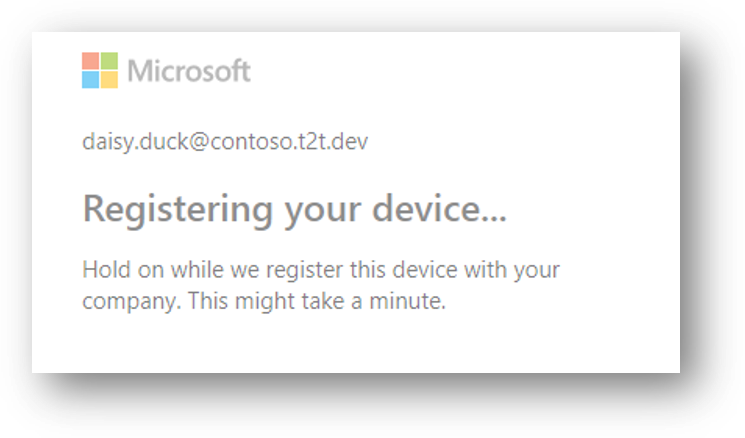

- Entra connect runs, adds device again from Active Directory and lists it also as Hybrid Joined.
- You will likely see it listed as “pending” prior as well.

- The workstation is rebooted, the same user logs in, configures WHfB at first logon, now the registered device is removed and only the Hybrid joined device remains and is enrolled to Intune

- The device becomes compliant in Intune

Implementation
You should very CAREFULLY consider the above recommendations based on your own environment and overall estate needs and requirements.
It may be that Entra registered devices – and even Intune enrolled Entra registered devices – are a legitimate option for you, however if your desired end-state configuration is to only have your corporate devices Entra Hybrid joined / Entra joined and Intune enrolled, then avoiding Entra registered devices completely is the way forward for you.
Intune enrolled Entra registered devices
3rd Party devices. I would anticipate that for 3rd party devices like trusted partners there is no need to Intune enroll them to your tenant. It is likely that they are already Intune enrolled to another tenant anyway.
Personal Devices. It is very rare that we see organisations allowing staff to connect their personal Windows devices to the tenant. Maybe allowing some strictly controlled browser-based activity to OWA and SharePoint/Teams and OneDriveis allowed – but registering and Intune enrolling a non-corporate Windows devices is usually not an offering.