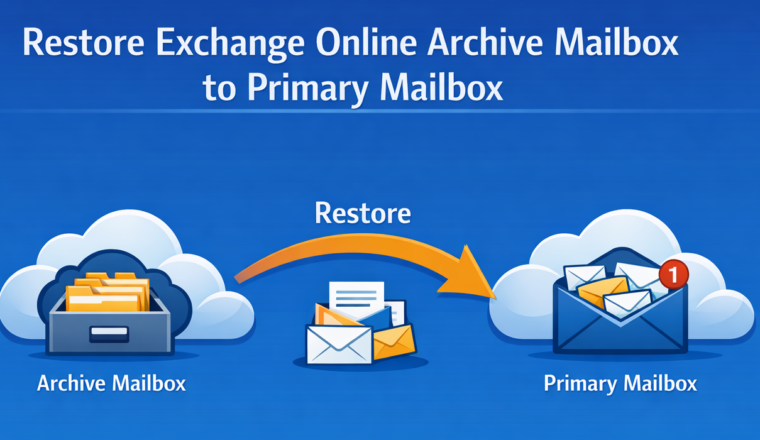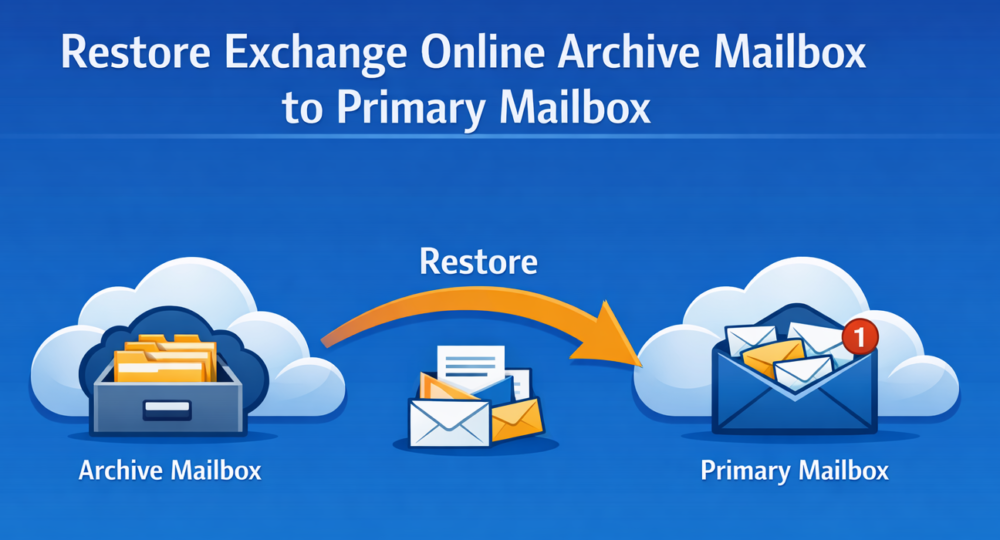
Restore Exchange Online Archive Mailbox to Primary Mailbox
You’d think this would be easy and not an uncommon request. There are genuine use cases for restoring an Exchange Online Archive mailbox to the primary mailbox.
For example:
- Migrating from one tenant to another, where the source tenant uses archiving, but the target does not.
- Downgrading Microsoft 365 licensing to a SKU that excludes archiving.
- Or simply when a user says, “I just want all my email in my primary mailbox.”
With the right SKU, Microsoft gives you a 100 GB primary mailbox. Plenty of space for most users. But even so, you might only use 15 GB in your primary mailbox, while everything older than two years is auto-archived. If your archive is 10 GB, you’re now managing 25 GB split across two mailboxes and you’d prefer it all in one place.
This isn’t just about convenience. In industries with annual client renewals, you often need to reference conversations from two, three, or even four years ago. That data lives in the archive which isn’t always fast to search and isn’t available offline. If you’re a remote worker, a “road warrior” on planes and trains, then that’s a problem.
And here’s the kicker: there’s no one-click option to migrate everything back. Even PowerShell won’t help: New-MailboxRestoreRequest only works on inactive, deleted mailboxes. These aren’t.
Options and Tools
For my scenario, I opted to use a third-party migration tool: BitTitan. At first, I wasn’t sure if this use case would work. We know that in cross-tenant migrations, you can choose whether the source archive goes to the target archive or primary mailbox. But I found that even intra-tenant archive-to-primary migration was surprisingly straightforward.
Steps to use BitTitan to migrate live archive mailbox into live primary mailbox
A couple of Notes:
- Make sure to set your Primary Mailbox RetentionPolicy to $NULL e.g.
- Set-Mailbox conrad.murray@contoso.com -RetentionPolicy:$NULL
- Otherwise as you migrate mail back to primary, it will just archive it again!
- Set-Mailbox conrad.murray@contoso.com -RetentionPolicy:$NULL
- Remember that this does not “empty” your archive, so you will have the emails in two places.
- When you have finished you should consider disabling your mailbox archive to avoid future confusion for searching and eDiscovery
- This could be a challenge in and of itself if Retention Policies are at play
- When you have finished you should consider disabling your mailbox archive to avoid future confusion for searching and eDiscovery
- BEWARE: Migrating your Archive will migrate all of the Archive Mailbox folder structure back to your primary mailbox! If you have been moving and renaming folders dilgently over the years, but not in your Archive, you are going to have your world disrupted! Sadly Microsoft Archiving does not sync your folders across mailboxes, so you could end up with quite a mess!
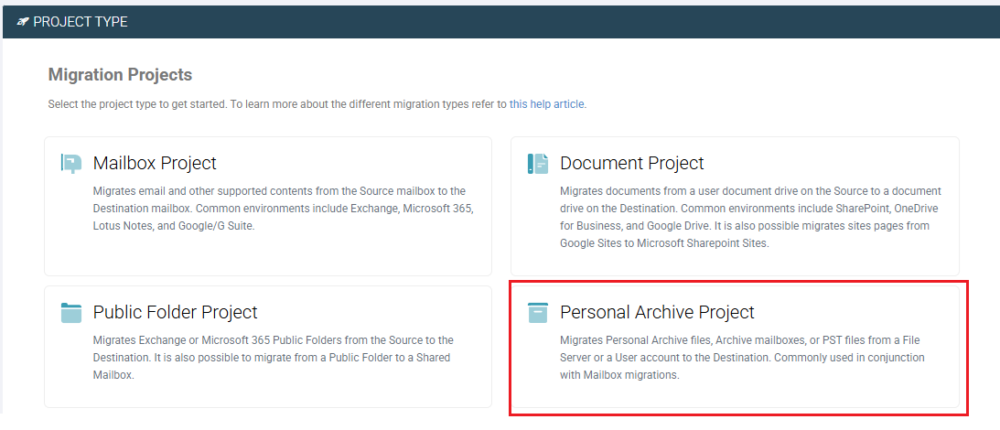
Create your BitTitan Project, this will be a Personal Archive Project
Key Step:
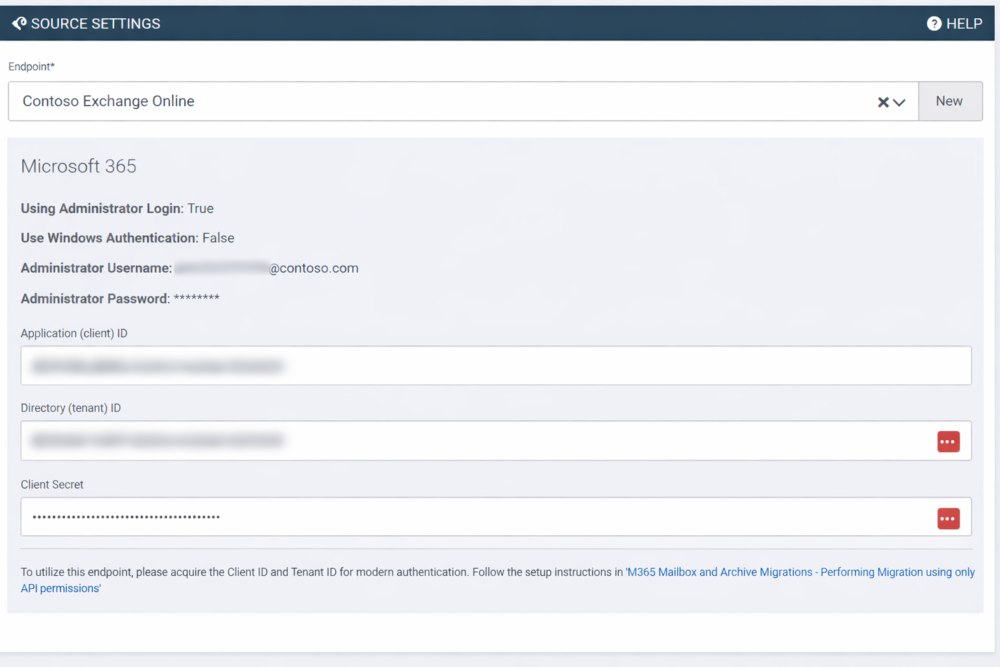
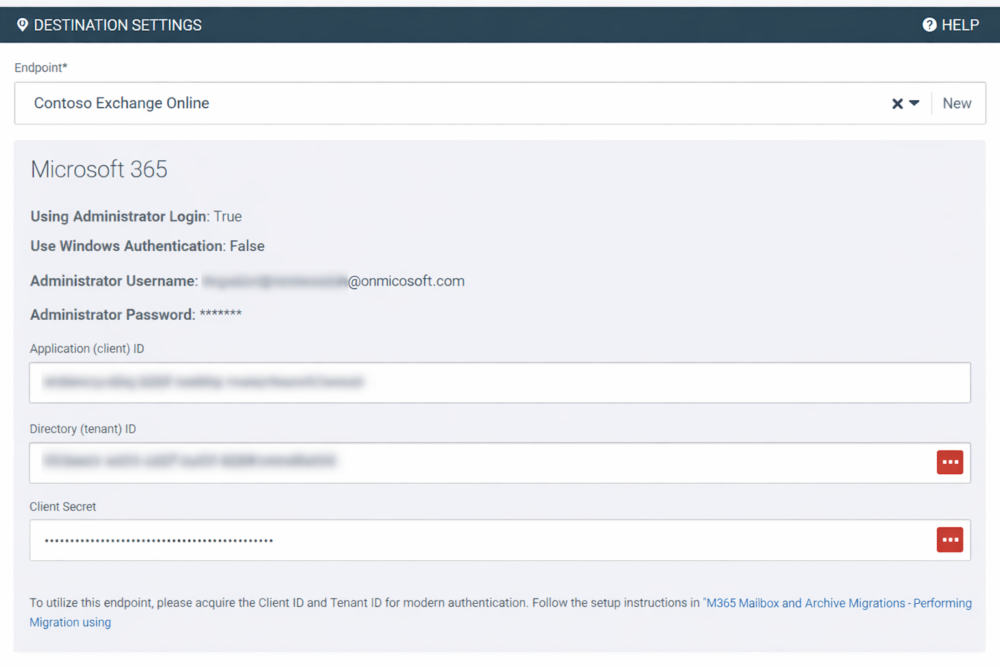
When you get to the SOURCE and TARGET endpoints / connectors, these need to be the same i.e. your tenant. Save all the way to the end.
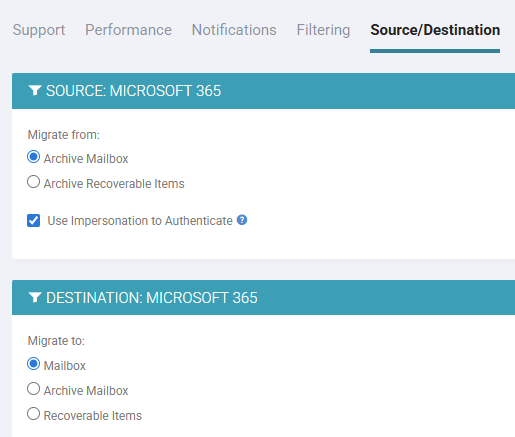
Source/Destinantion
Once you have saved your project, check the settings and look in Source/Destination and make sure your Source is “Archive Mailbox” and your Destination is “Mailbox”
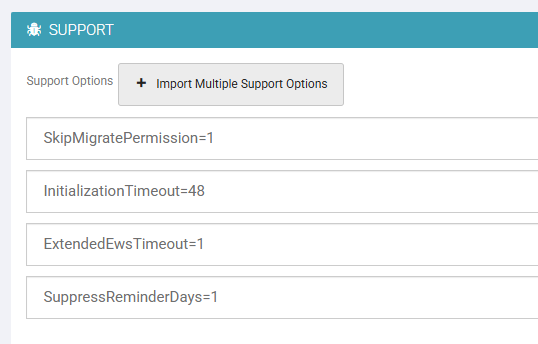
On the Advanced options, you might want to consider adding:
- SkipMigratePermission=1
- SuppressReminderDays=1
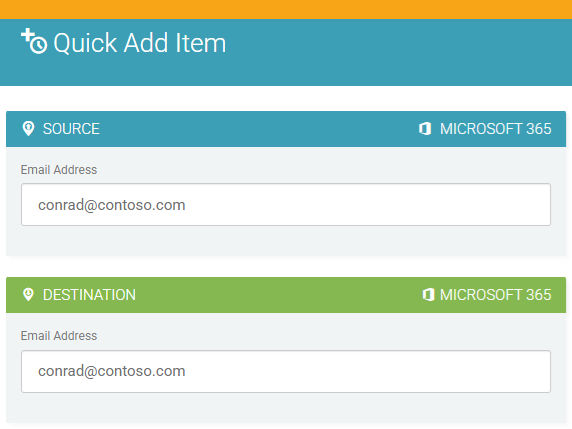
Add your users
The key here is that the Source and Destination email address is the SAME.
then verify, licence and migrate.
Migrate
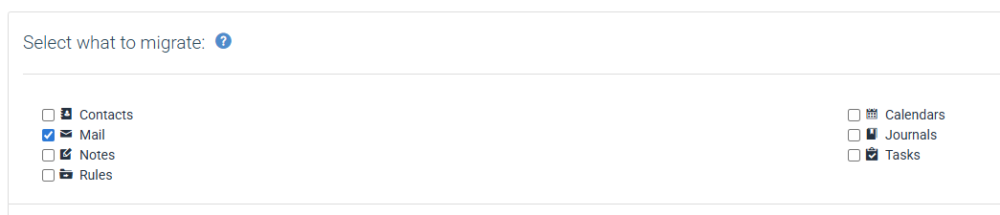
I also only migrated email back to primary, definitely not Calendar, Tasks and Contacts. Migrating Calendar back would almost certainly cause chaos.
Migration in progress

Now, sit back and wait for it to complete, and enjoy all your email in one place!