Manually Copy, Move or Export OneNote
In some circumstance during a tenant-to-tenant migrations, we have occasionally seen OneNote that don’t migrate correctly. This could be for a multitude of reasons, perhaps they were legacy OneNote stored outside of OneDrive or they had not sync’d from the user’s device. Here I will explain how you can copy the content manually if the migration will not succeed in a timely fashion and you need a tactical workaround ASAP.

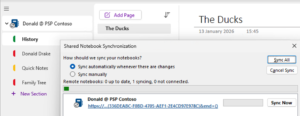
OneNote are In OneDrive for Business
Typically, the default 1st OneNote Notebook is seen in the root as a shortcut and named “FirstName @ Tenant Name”
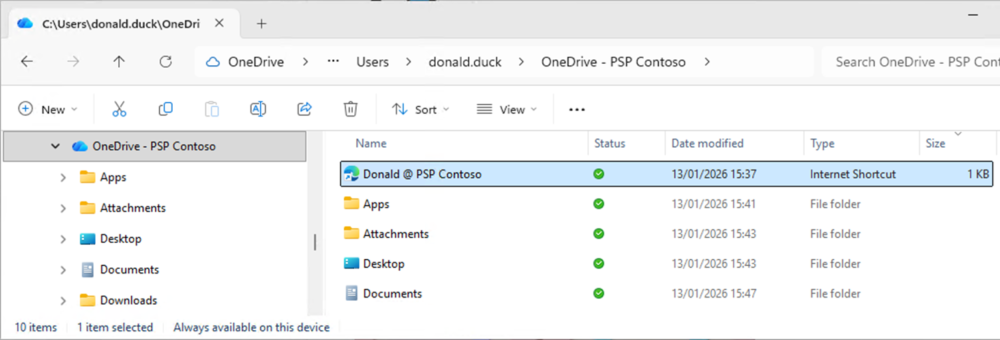
This correlates to what you see in OneNote itself
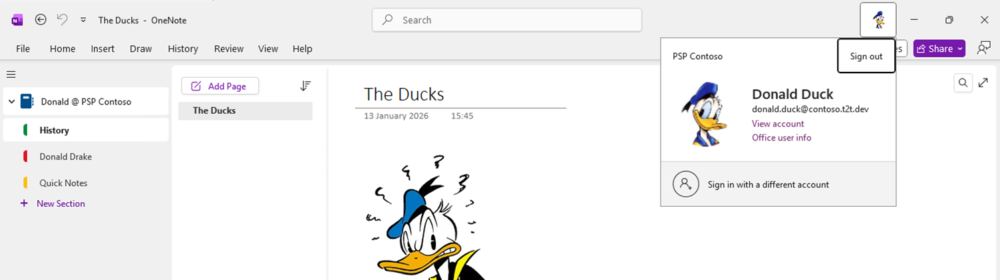
Migrated OneNote
Something to be aware of, migration tools migrate the OneNote “as is” so the title of your migrated OneNote might be confusing, because it will appear in the TARGET tenant as the same name as the SOURCE tenant and you will have two. So when you are looking for your migrated content it will be counter intuitive.
Manually Export a whole Notebook
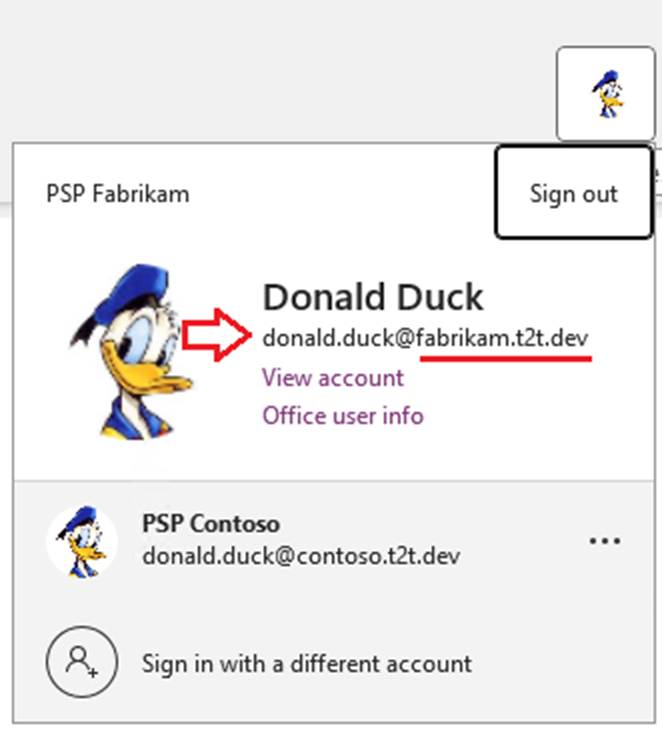
Make sure you are signed in at OneNote to both the Source and Target tenants.
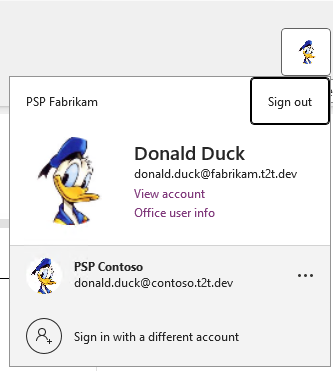
Open the “other” tenant OneNote – Source if you are connected to target
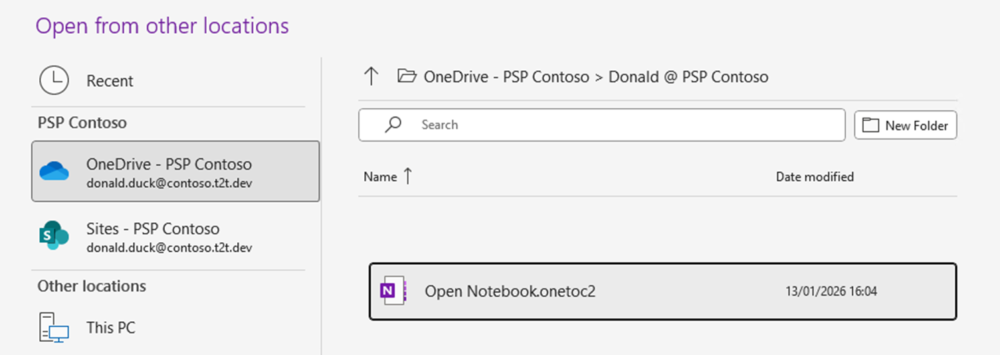
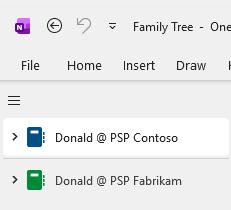
Ensure you are toggled to the Tenant you want to copy IN TO (i.e. your target)
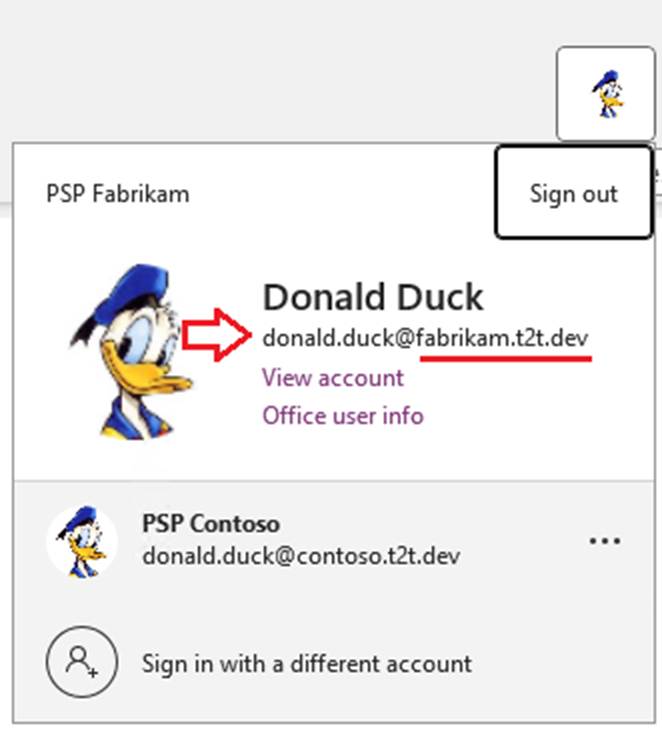
Right click the root of the Notebook and select Properties
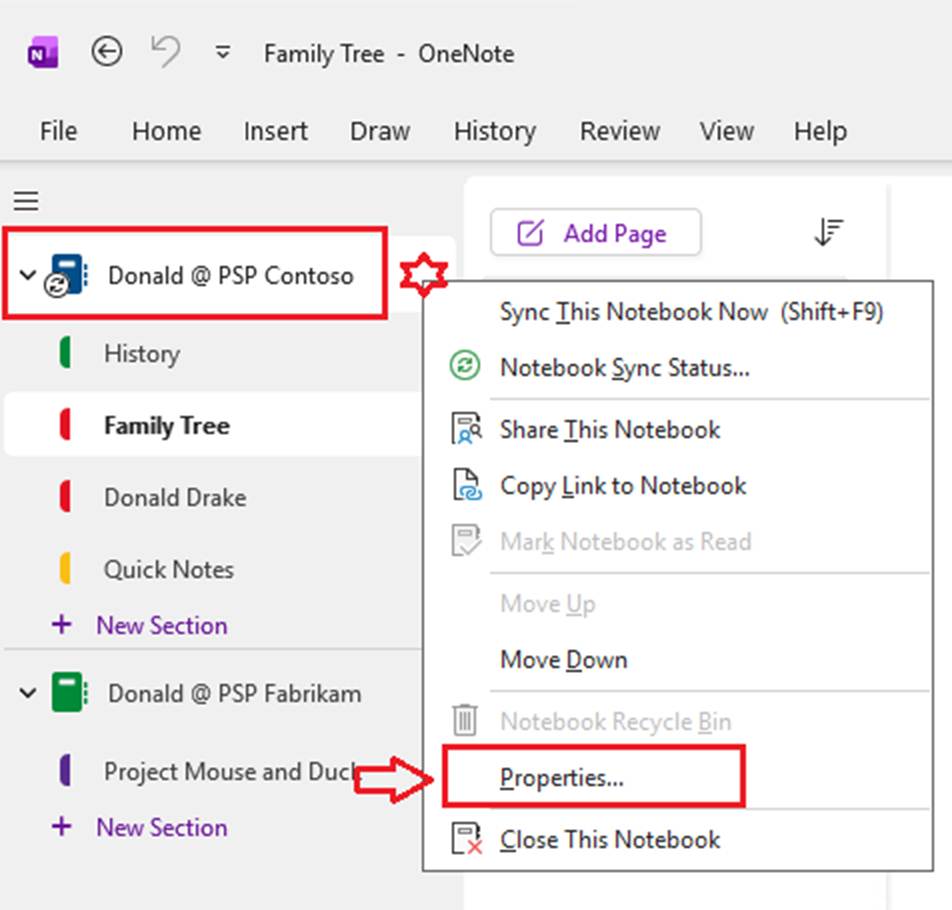
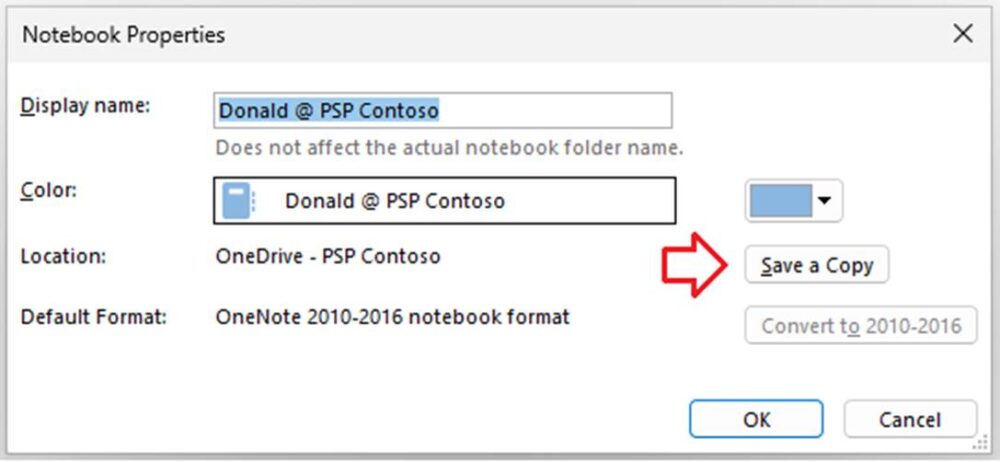
Choose “Save a Copy”
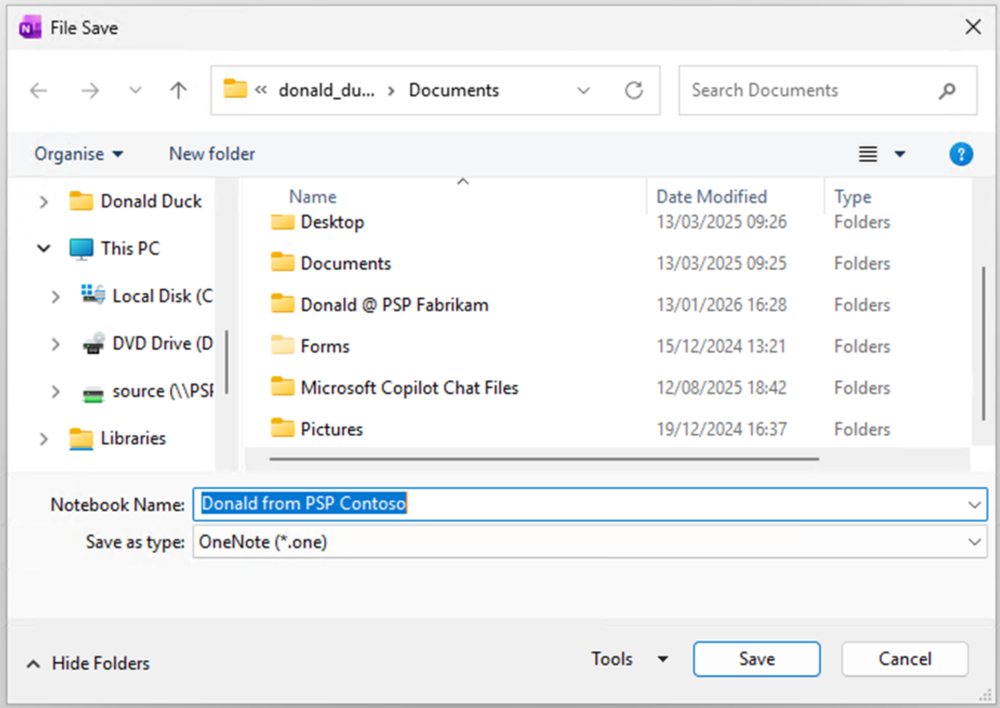
Give your Notebook a meaningful name
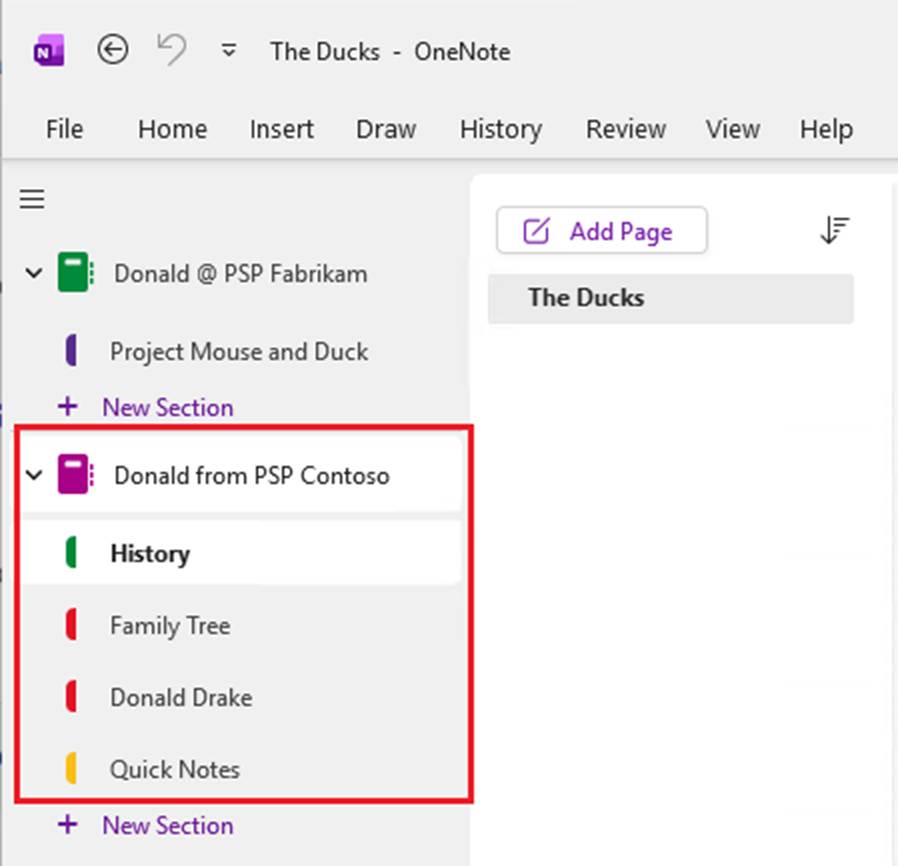
Copy
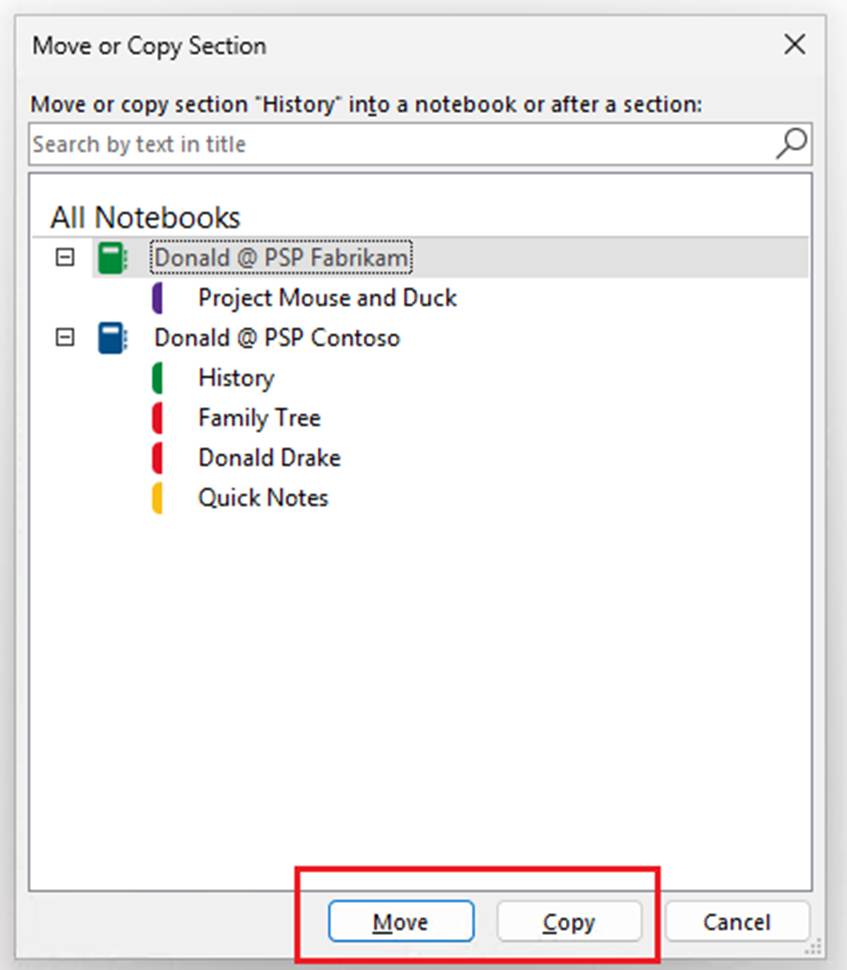
If you prefer, you can just Copy Sections directly into your target OneNote. Again be sure you are toggled to the Tenant you want to copy IN TO (i.e. your target)
Find the Section you want to work with, right click, and choose Move or Copy. We would recommend Copy so that the source remains intact.

Choose the root
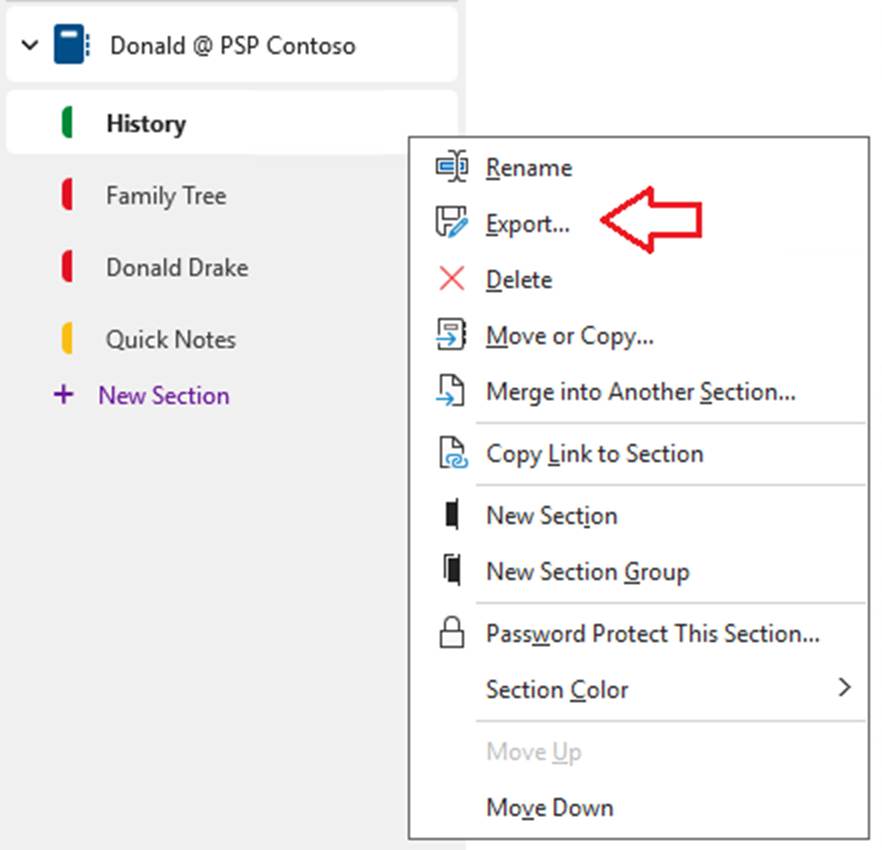
Export
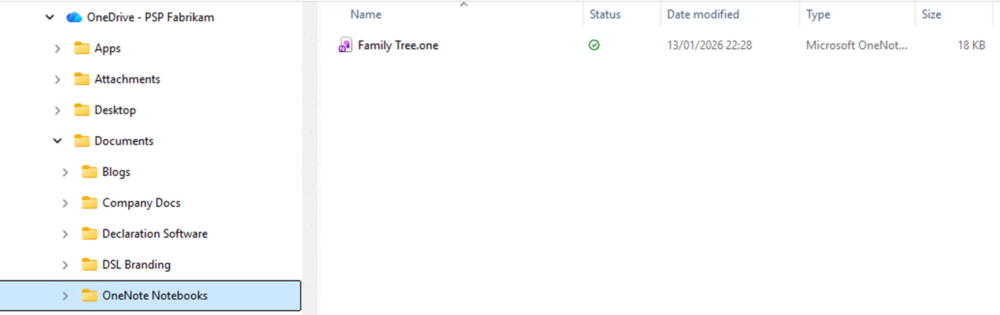
Whilst Export is an option, it will create .one standalone section files that are not ideal so would NOT recommend using this option.

OneNote file Structure
OneNote notebooks in Microsoft 365 are not files in the traditional sense.
Microsoft OneNote stores notebooks as a collection of proprietary section and index files within SharePoint Online document libraries, where OneDrive and Teams expose only logical links to the notebook while the OneNote application manages all data access, synchronization, and consistency.
They are logical containers whose actual data is stored as a collection of files inside SharePoint document libraries, with OneDrive and Teams merely providing links and access surfaces, not storage.
All modern OneNote notebooks (OneNote for Windows / Mac / Web) are stored in SharePoint Online document libraries
This applies whether the notebook was created from:
- OneDrive
- Microsoft Teams
- Microsoft OneNote itself
What you see vs what actually exists
In OneDrive:
- A OneNote notebook icon
- Looks like a file
- Behaves like a shortcut
In Teams:
- A “Notebook” tab
- Appears embedded in the Team
What actually exists
Behind the scenes, the notebook lives in a SharePoint document library, as a folder-like package (but not a normal folder) containing multiple proprietary OneNote data files
Inside SharePoint, a OneNote notebook appears as:
<NotebookName>
│
├── Open Notebook.onetoc2
├── Section 1.one
├── Section 2.one
├── Section 3.one
└── (hidden metadata files)
Key points:
- .onetoc2 = table of contents / index
- .one files = individual sections
- Pages are not files
- Page content is stored inside section files
Files are locked and transaction-managed by OneNote.